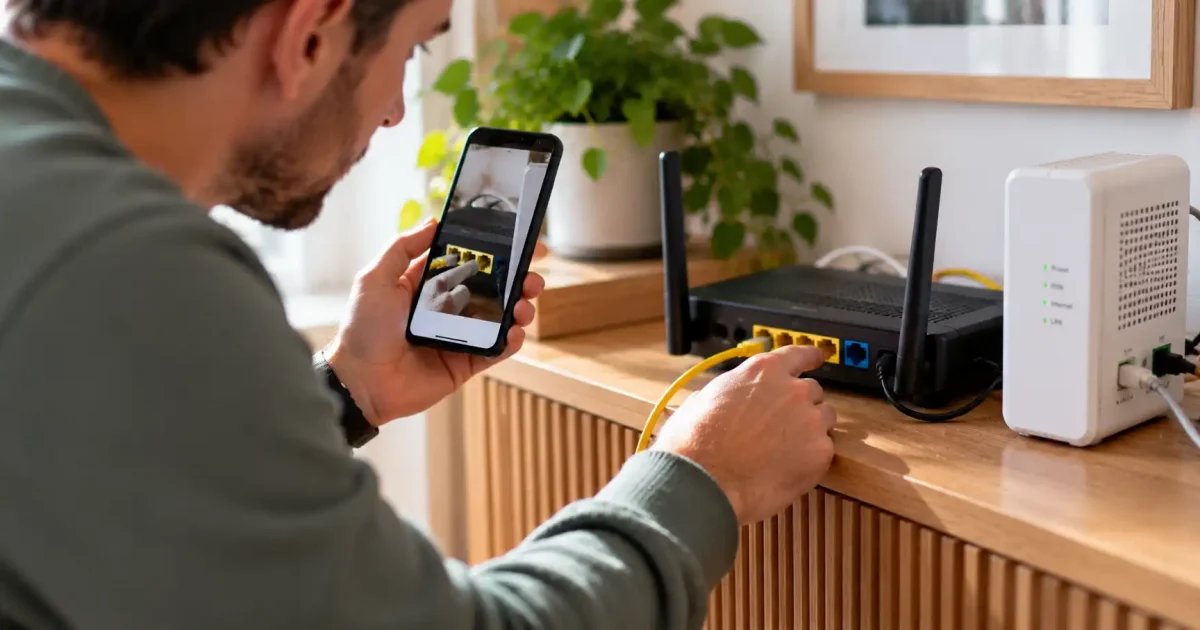

Live video lets agents inspect accessible power connections, labeled indicators, Ethernet connections and router placement. In broadband router troubleshooting, those views can resolve a physical uncertainty: which box the customer is describing, where a cable ends or which indicator is flashing.
A customer can accurately report that every cable is connected while the cable from the modem reaches the wrong router port. Equally, the connections might be correct while service activation is incomplete.
The useful workflow brings three kinds of evidence together. Provider checks investigate service conditions. A purposeful camera view clarifies accessible equipment and connections. Customer testing establishes whether the correction actually restored usable connectivity.
Find the failing part before moving a cable
Start by making “not working” specific. No internet access, slow service and intermittent drops call for different investigations.
Ask which devices are affected and how they connect. One laptop failing while other devices work points toward that laptop or its connection. Several devices failing over both Wi-Fi and Ethernet keeps shared equipment and upstream service under investigation. Wi-Fi-only symptoms justify testing the wireless path before treating the router as faulty.
For a new installation, check the activation status and any required provider setup steps. For previously working service, establish when the problem began and what changed. In either case, check known outages and run the provider’s available service diagnostics. An incomplete activation or confirmed outage may explain the failure without a camera inspection.
Offer video when a physical question remains that could change the next action: “Which port receives the cable from the modem?” is useful. “Can you show me everything?” is not.
The session also needs a working connection. Check whether the customer can use mobile data for video and whether they are comfortable doing so. Agree how to reconnect before any restart that could interrupt the contact. If video is unavailable, inaccessible or unwanted, continue with voice-led checks and model-specific instructions.
Ask for views that resolve a specific uncertainty
With permission, identify the equipment before asking the customer to handle it. They may have a combined gateway or a router connected to a separate modem or optical network terminal, usually called an ONT. That distinction determines which connection path the agent needs to inspect.
Keep the camera on the relevant equipment. Ask the customer to avoid password labels, Wi-Fi credentials and unrelated household details. Read the model from a safe location or use the provider’s equipment record rather than exposing an entire credential label.
| Requested view | What it can clarify | Next useful action |
| Equipment and relevant status indicators | Which unit has power and which labeled indicator is steady, flashing or off | Check that model’s indicator guidance and pair it with the relevant provider diagnostic |
| Accessible external power connections | Whether the intended power connection appears secure | Check seating only if safe and consistent with the equipment guidance |
| Both ends of the modem-to-router or ONT-to-router Ethernet cable | Whether the cable reaches the intended devices and ports | Compare the labeled endpoints with the applicable setup diagram |
| Close view of an Ethernet connector | Whether the plug appears partly inserted | Ask for a safe seating check, then retest |
| Router location, when the complaint concerns Wi-Fi | Whether placement suggests a useful comparison test | Reposition safely if appropriate and repeat the same wireless test |
Tracing both cable endpoints is more useful than confirming that “everything is plugged in.” A connector can be fully seated in the wrong port. Many routers distinguish a WAN or Internet connection from LAN connections for local devices, but port layouts and configurable roles vary. Use the instructions for that model and service configuration, not a remembered port color.
Treat indicator patterns the same way. A red light is a clue to look up, not a universal diagnosis of failed hardware. Record the indicator label and behavior, then use the model guidance and service checks to decide what follows.
A camera cannot measure line condition, radio interference or throughput. Nor does a router inside a cabinet prove poor Wi-Fi. It provides a reason to test a different placement when the symptoms fit.
Keep handling external and accessible. Do not ask customers to open equipment, disconnect fiber or handle damaged power components. Stop hands-on checks if equipment appears unsafe.
Follow one setup problem through to a useful correction
Consider a new-installation scenario in which a customer’s laptop and tablet cannot get online. The provider finds no known outage and confirms activation, but those checks do not explain the failure. The customer reports that the ONT and router are both powered.
The unresolved question is the Ethernet path between them. With permission, the agent asks for a view of the accessible connections. One Ethernet plug appears partly inserted. The customer seats it safely, following the agent’s instructions. They wait for the equipment’s specified reconnection period and test again. Service still does not work.
Continuing to trace the cable reveals another detail: its router end is in a port labeled LAN. The customer hesitates because the supplied setup sheet shows a different-looking device. Now the obstacle includes conflicting instructions, so repeating “use the Internet port” is unlikely to help.
The agent finds the provider’s instructions for the actual router and separate ONT setup. The customer opens the same instructions on their phone, using mobile data, and they compare the diagram with the equipment to establish which connection applies.
Once the correct port is established, the customer moves the accessible Ethernet plug to the designated router connection. They leave the fiber connection untouched. After the specified reconnection period, the agent returns to the laptop and tablet tests.
If seating the first connector had restored usable service, the inspection could have stopped there. Extra channels and documents earn their place only when an obstacle remains.
Make the smallest justified change, then test the right path
Correct an identified external connection before adding broader recovery steps. If a restart is still warranted, follow the provider’s or manufacturer’s procedure and allow the specified reconnection period. Separate modems and ONTs need their applicable guidance rather than a universal restart sequence.
Be explicit about the difference between restarting and factory resetting. A restart turns equipment off and back on. A factory reset can erase configuration and create another setup problem. The reset button should not be a routine first response to an unclear fault.
Once the equipment path is correct, use comparison tests to narrow what remains:
- Test near the router. Better performance nearby directs attention toward wireless coverage or conditions at the original location. It does not identify the precise cause.
- Try another device. If it works on the same connection while the original device fails, investigate the original device before disrupting shared equipment.
- Use Ethernet when practical. Connect a suitable device through a router LAN port using the applicable instructions. Working Ethernet with poor Wi-Fi directs attention toward the wireless path. Failure across both leaves shared equipment and upstream service in scope.
These comparisons are evidence, not absolute verdicts. A successful wired test does not prove every aspect of broadband service is healthy, especially if the complaint is intermittent.
For a speed complaint, use the provider-supported test method and record the connection type and relevant test conditions. A video call that looks smooth is not a throughput test.
Close on usable connectivity, not a changed light
Return to the customer’s original task on the affected device. Can the laptop now load a fresh page or use the service that previously failed? If several devices were affected, check whether the problem remains on any of them.
Make sure the test uses the customer’s broadband connection. A phone loading a page over mobile data can keep the support session alive while proving nothing about the router correction. For Wi-Fi complaints, return to the original location as well as testing nearby.
An immediate successful test demonstrates recovery at that moment. Intermittent drops require an appropriate observation period or follow-up before claiming sustained stability.
If the issue remains unresolved, give the next team a diagnostic record rather than “restarted router, still broken.” Include:
- Equipment models and relevant indicator labels and states
- Activation, outage and provider diagnostic findings
- Affected devices and the original symptom
- Wired-versus-wireless test results and relevant locations
- Connection corrections, restarts and other actions already tried
- The latest customer test result and the remaining uncertainty
Record necessary findings in the case notes. A useful handoff does not depend on recording the video or capturing images.
For service leaders, assess setup recoveries using the recorded correction, customer test result and subsequent related contacts within a defined review window. Count an avoided technician visit only when documented dispatch criteria or an existing booking show that a visit would otherwise have proceeded. Check for later dispatches for the same issue so a deferred visit is not counted as an avoided one.
If the connection remains down, the next team should know which part of the path still needs investigation and which checks are already complete. That narrower unresolved question is useful progress, even when the first agent cannot finish the repair.